VALE: talk to your AI on Windows.
Hold Right Ctrl to speak, hear a reply, and watch the visual field respond. VALE brings a voice interface and music-reactive visuals to your desktop.
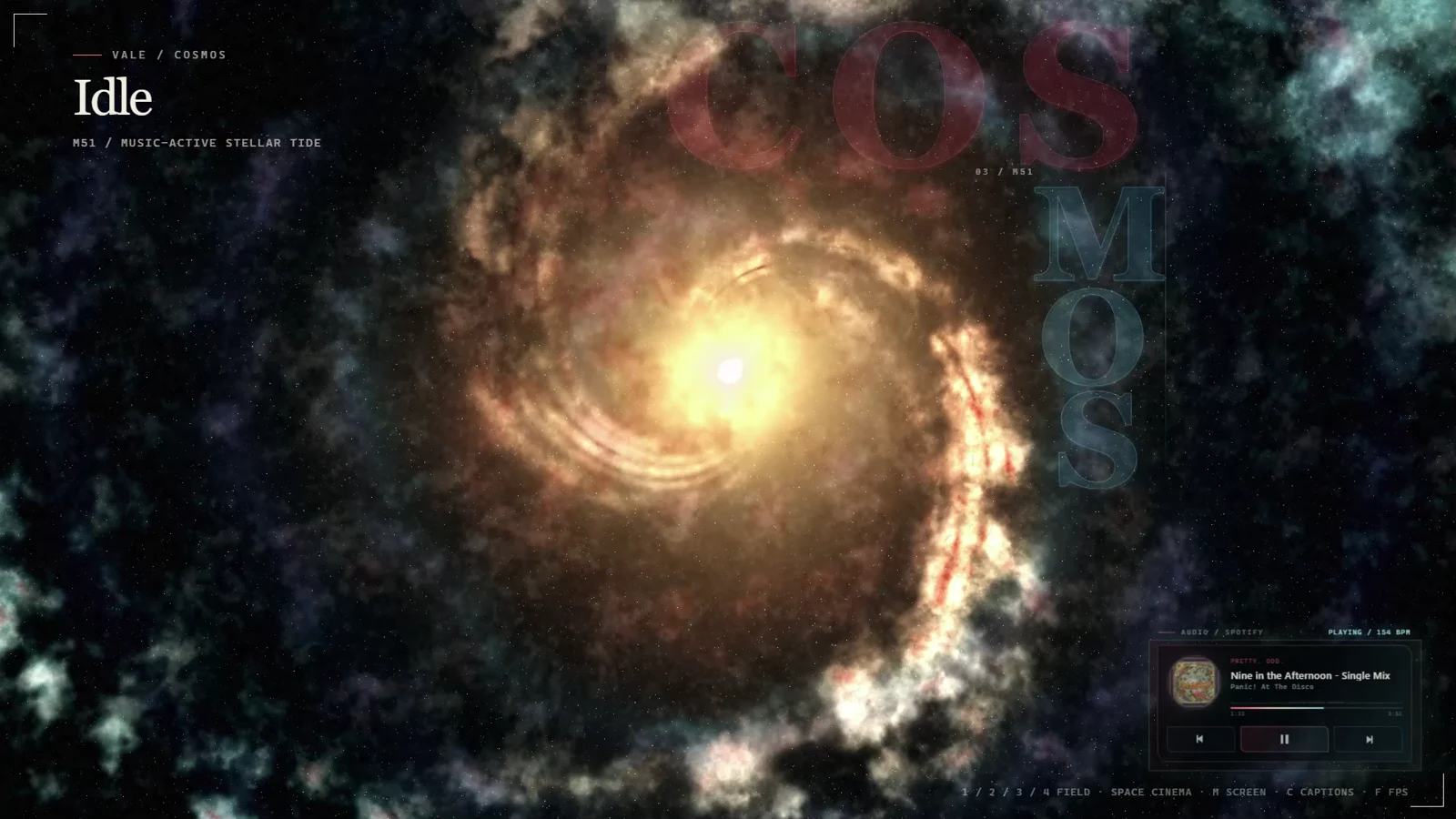
What it does
Whisper transcribes your microphone audio on your PC. Your configured AI backend generates a text response, and Kokoro turns that text into speech locally.
The four fields, ECLIPSE, AXIOM, COSMOS, and PELAGOS, respond to voice states and music. Spotify Desktop supplies track information and playback controls. Captions and cinema mode let you choose how much of the interface appears.
Set it up with your agent
Use Codex or Claude Code on the Windows PC where VALE will run. The prompt below asks the agent to check the release and installation. Read its report and try the microphone and voice yourself before relying on the setup.
Install the latest public VALE Windows preview from:
https://github.com/jordysupport/jordysupport.github.io/releases/latest

1. Confirm this is 64-bit Windows 10 or 11. Check for Chrome or Edge
   and at least 4 GB of free disk space.
2. Download VALE-Windows-x64.zip and its .sha256 file into a new folder.
   Verify the checksum. Stop if it doesn't match.
3. Extract the ZIP. Read README.md, RELEASE_NOTES.md, and
   INSTALL WITH YOUR AI AGENT.md. Explain the installation changes.
4. Check authentication with codex login status or claude auth status,
   using your own runtime. If a sign-in is needed, let me complete it
   through the official provider. Never print or copy credentials.
5. Run scripts\Install-VALEForAgent.ps1 with -AgentRuntime Codex
   or -AgentRuntime Claude, matching your runtime. Use the default
   per-user location and keep the integrity checks and diagnostics.
6. Run scripts\Test-VALEInstallation.ps1 and report its result.
   Stop and explain a failure if fixing it would require changing
   security settings, using credentials, or expanding access.
7. Start VALE. Report the installed version, backend, and warnings.
   Leave microphone and playback checks for me to confirm.

Use my authenticated agent CLI for replies. Keep Whisper and Kokoro
local. Do not configure a paid API endpoint or change unrelated files.
The first installation downloads the local voice runtime and needs an internet connection. This is a Windows preview; check the release notes for known issues.
Choosing an AI backend
The recommended setup uses an authenticated Codex or Claude Code CLI. Its responses count toward the access and limits of your provider's plan. You still need that provider account; the free VALE download doesn't include AI service access.
The manual Install VALE.cmd path also supports Ollama and other OpenAI-compatible endpoints. Your chosen endpoint determines whether replies stay local, need a key, or incur usage charges.
Privacy in plain English
Microphone transcription and speech generation run locally. In subscription-agent mode, conversation text goes through the authenticated CLI to its AI provider. Local speech processing does not make the whole conversation offline.
VALE uses the CLI's login session without copying it into VALE. In manual endpoint mode, any configured key is stored in the local installation and used to authenticate requests to that endpoint. Keep configuration files private.
Controls
| Control | Action |
|---|---|
| Hold Right Ctrl | Speak |
| 1–4 | Switch fields |
| M | Toggle cinema mode |
| C | Toggle captions |
| Spotify Desktop | Music visuals and playback controls |
If setup or audio fails, run Check VALE from the Start Menu. Review its diagnostics for the microphone, voice runtime, browser, authentication, and port conflicts.